| Part 1: Acquiring an Image and Scanning in Photo Express 3.0 SE Part 2: Saving an Image in Photo Express 3.0 SE Part 3: Printing an Image in Photo Express 3.0 SE Part 4: Making a Calendar with Photo Express 3.0 SE
Part 3: Printing an Image in Photo Express 3.0 SE - Click the Print button on the Command panel.
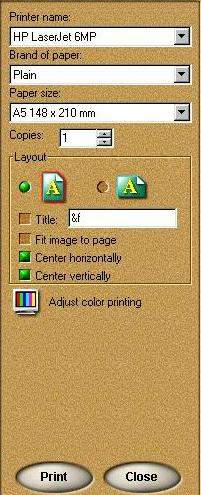
 The print tools appear on the Toolbar. Select a print tool to use: The print tools appear on the Toolbar. Select a print tool to use: Normal lets you print images normally on various different types of paper (from Letter and A4 to envelopes). Tile resamples the image down to tile it multiple times on the page, creating custom picture cards or postcards. Poster resamples the picture up allowing you to print portions of it on separate pieces of paper, effectively creating posters and banners. T-Shirt prints an image on T-shirt transfer paper. Multiple lets you print more than one image on a page. - After making your selection, click Print.
|  | |