| |   | | | Scan Dialog Box/Direct Scan Tutorial Part 1: When to Use the Scan Dialog box Part 2: Accessing the Scan Dialog box Part 3: Components of the Scan Dialog box Part 4: Using the Scan Dialog box
| Copy Clicking on the Copy icon brings up the following options: 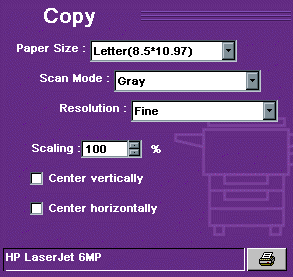
- Select the Paper Size from the pull-down menu. The choices include A4, Letter, and, depending on the scanner model, Legal or A3. There is also an option called Auto. This will make the scanner do a prescan first and then crop to the edge of the document so that only it is scanned.
- Choose the Scan Mode from the pull-down menu. The document can be in Gray, Color or Text (Line Art) mode. Text will be the best choice for most documents.
- Choose a Resolution. The menu gives the options for Normal, Fine or Superfine. Normal is generally the best choice for the majority of documents.
- The Scaling feature is used to increase the size of the document. 100% is actual size.
- Click the checkboxes to center the copy vertically (up and down) or horizontally (left to right). This is useful if the item is smaller than a full page.
- The Printer icon
 is used to select the printer being used. Normally this will default to the printer selected for Windows. Click the icon to select a different printer or to change the properties of the selected one. is used to select the printer being used. Normally this will default to the printer selected for Windows. Click the icon to select a different printer or to change the properties of the selected one. - Once all of the settings are chosen, click on the Scan Command icon on the right-hand side. The Scan Dialog box will disappear and a small progress indicator will appear. After the scan has completed, the document will be sent to the printer and should print within a few moments.
| | To learn how to use a function, click on its icon. | | Scan | Copy | Fax | E-mail | OCR | | 
| 
| 
| 
| 
| | | | | |