iPhoto Plus 1.2 Tutorial Selecting The TWAIN Source Acquiring The Scanner Setting Monitor Gamma
Selecting The TWAIN Data Source (Driver) - Start iPhoto Plus.
- Open the File Menu and click Select Source.
- The Source dialog box shows which TWAIN Data Source is currently selected. To change it, highlight Mustek F/B Scanner (EPP-II) which is the TWAIN Data Source for the 600 III EP. Once it is highlighted, click Select.
Acquiring The Scanner - Start iPhoto Plus.
- Open the File Menu and click on the Acquire command.
- The TWAIN driver appears.
- Set your Scan Mode and Resolution, then click Prescan.
- Set your Crop Frame, then click Scan.
- When scanning is complete, click the Close button to return to iPhoto Plus.
Setting Monitor Gamma - After scanning a picture, you may need to adjust the Monitor Gamma Setting (This can only be done when an image is open).
- Open the file C:\mscan\msoffice\ipplus\ipgamma.tif which is shown below. (Use the Find option on your Windows 95 Start Menu to locate the file.)
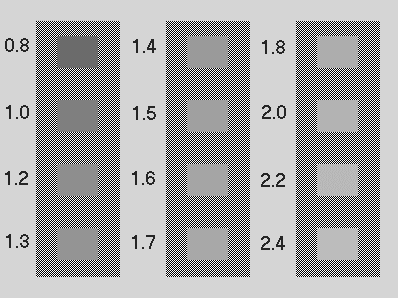
- Choose the gray square which most closely resembles the background and make note of the numbers printed next to that square.
- Open the File Menu and click Preferences.
- Type the corrected Gamma setting noted above into the Monitor Gamma dialog box then click OK.
- The Monitor Gamma will now be adjusted and your scanned image will appear lighter or darker accordingly.
|

