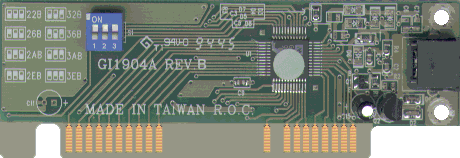
Hand Scanner Help 2. SPI Driver Open Failure error message. 3. MWave error message on IBM Aptiva. Mustek Hand Scanners require several of your computer's resources to operate. The requirement for some resources is inherent to the interface card you are using while others are inherent to the TWAIN driver being used. Here are the resources typical to all hand scanner, though some of ours do not use all of these resources: Input/Output AddressThe I/O address is used by the computer to communicate with the scanner. Through the address, the TWAIN driver can wake the scanner up and turn it's lamp on. All Mustek interface cards require one of the following eight I/O addresses to be available on your computer: 22B, 26B, 2AB, 2EB, 32B, 36B, 3AB or 3EB. Most of the cards have a blue switch box which is used to set the address. When all three switches are up, the address is set to 3EB. There is a diagram printed right on the card showing this. Direct Memory Access ChannelMany Mustek hand scanners use a DMA channel to send the image data directly to your computer's memory. They can only use DMA 1 or DMA 3. Many Sound Cards use both of these DMAs already, so you may not be able to get the scanner working. This is a common problem on the following brands of computer: Acer, Compaq Presario, IBM Aptiva, and Packard Bell. It also may be a problem on many clone computers. If you have one of the brands listed above or suspect that DMAs 1 and 3 are not available in your computer, contact our Technical Support Department. If we determine that a DMA channel is not available we may be able to send you an IF-980 interface card which does not need a DMA channel. If you have a clone computer with a Plug-n-Play sound card which you suspect is using DMAs 1 and 3, remove the sound card from the computer before installing the hand scanner. You will also need to delete the sound card from the Windows 95/98 Device Manager. Once the scanner is installed and working, re-install the sound card and Windows 95/98 will assign it a different DMA channel. Interrupt RequestThe requirement for an IRQ is inherent to the scanner's TWAIN driver. The latest drivers do not require an IRQ. When installing the TWAIN driver, the configuration setting screen will say IRQ Level "Not Used" if you have the latest driver (See picture below). If the installation screen always shows an IRQ Level, you have an outdated driver. Go to our Drivers Page to get the latest hand scanner TWAIN driver. GI-1904 Interface CardThis card has an I/O address switch. It requires DMA 1 or 3.
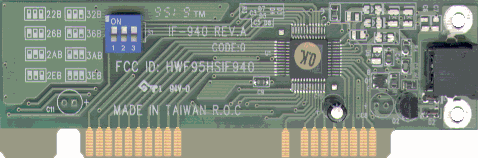
IF-940 Interface CardThis card has an I/O address switch. It requires DMA 1 or 3.
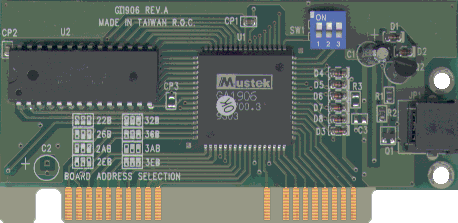
GI-1906 Interface CardThis card has an I/O address switch. It does not require a DMA
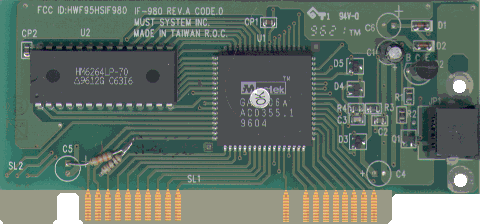
IF-980 Interface Card |
This card does not have an I/O address switch. The I/O address switch is set on your computer monitor during installation of the driver. It does not require a DMA
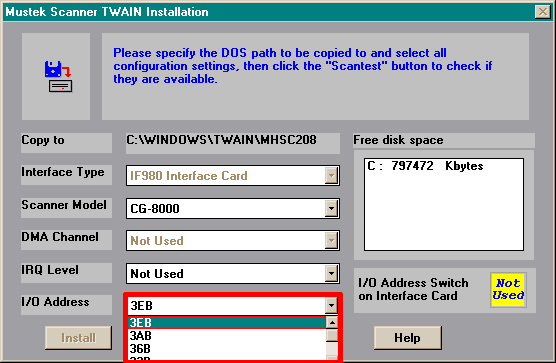
Driver InstallationThe screen below shows the configuration settings during driver installation. This screen was taken from installation with the IF-980 card shown above. Notice that the I/O address can be set right on this screen (outlined in red). It shows IRQ Level as "Not Used" because the latest drivers don't need an IRQ and DMA Channel as "Not Used" because the IF-980 doesn't use a DMA. The yellow box Says that there is no switch on the card. If you have any card other than an IF-980, it will say there is a switch used on the card. The driver should automatically detect the Interface Type. If it gets the card type wrong, you either have a bad address setting, the card is not fully seated in the slot or the card may be defective.
If these steps did not solve the problem, call our Technical Support Department for assistance.
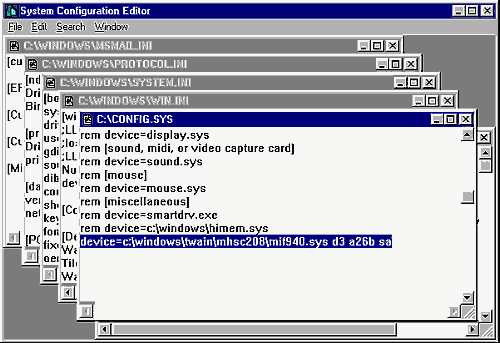
Solution: The scanner's device driver is picky about what order it loads in during boot-up. Move the device driver to the top of your Config.sys file and that should fix the problem. Referring to the diagram below, here are the steps to do this:
In Windows 95/98, click START then select RUN. Type in Sysedit and click OK. In Windows 3.x, open the Program Manager's File Menu and click RUN. Type in Sysedit and click OK.
If these steps don't solve the problem, you may have a bad interface card. Call our Technical Support Department for further assistance. 3. MWave Error Message On IBM Aptiva
|