 Tonal Adjustment Icon | To use Tonal Adjustment,the steps are: 1. After acquiring the scanner’s Twain driver,click the Tonal Adjustment icon above the preview image window. The Tonaladjustment dialog box appears. |
Enhancing ImagesWith Tonal AdjustmentsOnce you have scanned an image and viewed theresults, you can use the Twain Driver’s Tonal Adjustment features to improvethe quality of succeeding scans and thereby optimize your scanner output. If your images are appearing too light or toodark, you should adjust the Gamma Setting as outlined below in step 3. |
| Tonal Adjustment Icon | To use Tonal Adjustment,the steps are: 1. After acquiring the scanner’s Twain driver,click the Tonal Adjustment icon above the preview image window. The Tonaladjustment dialog box appears. |
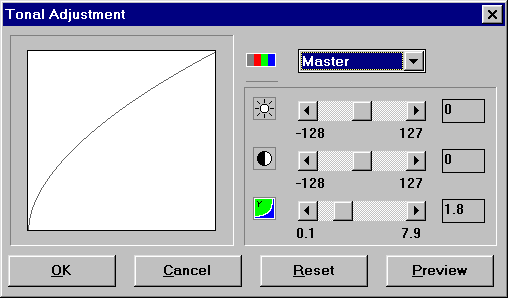 Tonal Adjustment Dialog Box |
| 2. Open the Master box and select the channelyou wish to modify. Choose Red, Green, Blue or Master. Choosing Masterapplies changes to all three channels equally and simultaneously. 3. Drag the scroll bars or type into the entryboxes to modify: Brightness– measures the overall amount of white in an image. 4. Click Previewto see the effect of your changes to the preview image. Readjust the settingsif necessary. Click Reset if you want to discard the changes and go backto the original image. 5.Click OKwhen you’re finished making adjustments. The Tonal Adjustment dialog boxcloses and you can proceed to scan the image.
|
