Troubleshooting USB Devices under Windows 98 Mustek supports USB scanners under the Windows 98 operating system only. General USB devices not working in Windows 98 second edition If there are no USB devices listed in the Device Manager A host controller is listed, but USB Root Hub is not listed USB Host Controller and/or the USB Root Hub are listed in the Other Devices category The USB device is listed in the Other Devices category The Host Controller and USB Root Hub are listed, but the USB device is NOT System Resources The Host Controller, USB Root Hub, and the USB device are all listed correctly in Device Manager Sharing IRQ. s with USB
General | Back to Top
Check your DEVICE MANAGER settings.
Right click on the "My Computer" icon, left click on "Properties", select the Device Manager Tab. In order for USB to work properly, the following should be listed in the Device Manager and must be free of conflicts. You should have entries in the Device Manager similar to this: 
Note: The Host Controller may differ from these examples, depending upon the manufacturer. Along with the above entries, if everything is properly configured you will also see your USB device under Imaging Device. 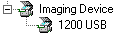
Make sure you have enough resources to run the USB device.
USB devices not working in Windows 98 Second Edition | Back to Top
First, make sure the device is connected and, if it requires external power that it is plugged in and receiving power. If you are using the VIA USB Chipset, you can download the updated USB Filter Driver from VIA's web site at www.viatech.com/drivers/index.htm. This update reportedly improves USB compatibility with several third-party devices including scanners. Back to Top
First, make sure the device is connected and, if it requires external power that it is plugged in and receiving power. If you are using the VIA USB Chipset, you can download the updated USB Filter Driver from VIA's web site at www.viatech.com/drivers/index.htm. This update reportedly improves USB compatibility with several third-party devices including scanners.
If there are no USB devices listed in the Device Manager | Back to Top
Your computer's USB port may not be enabled. Enable the USB port by running your computer's BIOS Setup program. If you are unsure how to run the computer's BIOS Setup program for your computer, consult the documentation that came with your computer or contact your computer manufacturer. Changing the wrong settings in the BIOS can disable your computer. Note: There have been some cases where a computer has the physical USB ports, but BIOS does not support them. You'll need to contact your computer manufacturer to upgrade the BIOS if possible.
A host controller is listed, but USB Root Hub is not listed | Back to Top
Usually the USB.INF file will install the drivers for both the Host Controller and the Root Hub. If the Root Hub is not showing up in the Device Manager (but the Host Controller does), then there is likely some problem with the .INF file or the Host Controller configuration. In order to properly install the drivers for the Host Controller and the Root Hub, try these suggestions: - In the Device Manager, click the + in front of Universal Serial Bus Controller.
- Select the USB Host Controller device.
- Click the Remove button.
- Click the Refresh button. Windows will redetect the hardware and should find both the Host Controller and the Root Hub. Follow the prompts in the hardware wizard.
Note: You may be asked to insert the Windows installation CD. If the USB Root Hub still does not appear in Device Manager, then try this: - In Windows Explorer, go to \WINDOWS\INF directory. Right click on the USB.INF file and choose the "install" option.
If the USB Root Hub still does not appear in Device Manager after the above steps, then try this: - In Device Manager, click the + in front of Universal Serial Bus Controller.Make a note of the model of the Host Controller currently installed (either Universal or Open).
- Select the USB Host Controller device.
- Click the Properties button.
- Go to the Driver tab and click Update Driver.
- In the Update Device Driver Wizard, click Next.
- Select "Display a list of all the drivers in a specific location..." and click Next.
- Select "Show all hardware".
- At the top of the Manufacturers list, select (Standard USB Host Controller).
- In the Models list, select a standard host controller as follows:
- If the model from Step 2 above is a Universal host controller, select the "Standard Universal PCI to USB Host Controller".
- If the model from Step 2 above is an Open host controller, select the "Standard OpenHCD PCI to USB Host Controller".
- Click Next twice. Follow the prompts to finish the wizard. You may be asked to insert the Windows installation CD.
Note: If, after trying all the above steps, the USB Root Hub still does not appear in Device Manager, contact the manufacturer of your computer for assistance.
USB Host Controller/ Root Hub are listed under Other Devices | Back to Top
If either the USB Host Controller and/or the USB Root Hub is listed under Other Devices as "Unknown Device" or "PCI USB Controller", you may have an incomplete or corrupted installation of the USB drivers. Try resolving this problem with the following steps: - In Device Manager, click the + in front of Other Devices.
- Select the Unknown Device or PCI USB Controller.
- Click the Remove button.
- Click the Refresh button. Windows should redetect the hardware.
- Follow the prompts in the hardware wizard.
Note: You may be asked to insert the Windows installation CD.
The USB device is listed in the Other Devices category | Back to Top
If the USB device is listed under Other Devices as an Unknown Device, you may have an incomplete or corrupted installation of the device drivers. Try resolving this problem with the following steps: - In Device Manager, click the + in front of Other Devices.
- Select the Unknown Device.
- Click the Remove button.
- Click the Refresh button. Windows should redetect the hardware.
- Follow the prompts in the hardware wizard.
Note: You may be asked to insert your Windows installation CD or USB device installation CD. Be sure to have them available.
The Host Controller/Root Hub are listed, but the device is NOT | Back to Top - The USB port may be defective.
- The USB port may not be providing enough power to the device.
- If the USB port device is implemented by a riser card, the cable from the card to the motherboard may not be connected properly.
- There may not be enough system resources on the computer.
Follow these Steps:
Try unplugging the device from the back of the computer and then plug it back in. If nothing changes in the "Device Manager", plug the scanner into a different USB port. If you still get no change, contact your computer manufacturer. Even with a bad connection, the "Device Manager" should still indicate something is being attached. Try installing a Different USB device on your computer. If another USB device also DOES NOT WORK on your computer, it's likely that one of the above conditions is the cause of the problem. Contact the manufacturer of your computer for assistance. If another USB device works OK on your computer, the device may be defective. Try installing the device on a different computer that supports USB devices. If the device works on a different computer, it's likely that one of the above conditions is the cause of the problem on your computer. Contact the manufacturer of your computer for assistance. If the device also DOES NOT WORK on a different computer, the device may be defective.
System Resources | Back to Top
Low system resources are an indication of too many programs running in the background. The more programs running the more likely software conflicts and the Windows operating environment being unstable, which could result in erratic behaviors. There is no exact percentage to determine what is too low on your system. How your system is configured determines if your system resources are too low. To check your resources:
Reboot your computer. Right click on "My Computer," left click on "Properties" and then click the "Performance" tab in the "System Properties" window. You will see an entry for "System Resources." A "clean" running system will show above 90 percent resources. This does not mean if you are below 90 percent your USB device will not run; again this depends on your system configuration. To free up system resources:
Close programs running in the background by clicking on "Start," choosing "Run" and typing MSCONFIG, then click on OK. Select the Startup tab and unselect everything but System Tray, ScanRegistry, and StillImageMonitor. Click OK and you will be asked to restart the computer. If you later decide that you want to activate these items, just run the System Configuration Utility again and restore the check marks.
The Host Controller, USB Root Hub, and the USB device are all listed correctly in Device Manager | Back to Top
If the USB Host Controller and the USB Root Hub both appear in the USB Serial Bus Controller category and the device appears in the Imaging Device category, then the USB components are likely to be properly configured on your computer. Check the following: - Is the Device plugged in and turned on?
- Is the device cable connected firmly into place?
- Low system resources can cause problems as well. See above to check system resources.
Sharing IRQ's with USB | Back to Top
Typically, the USB Host Controller can share IRQs with other devices. However, in rare cases, it appears that if it is sharing an IRQ with another device, the USB device may not get recognized. If this happens, you can try forcing the Host Controller onto another IRQ in the Device Manager if there is one free: - Double-click 'Computer' at the top of the Device Manager and select the Reserve Resources tab.
- Click Add and enter the IRQ # that the USB Host Controller is currently using; click OK three times to finish.
- Go back to Device Manager main screen, select the USB Host Controller device and click Remove.
- Restart the system. The USB Host Controller should be re-detected and set itself up on some IRQ other than the one it used before (preferably one that is not being used by anything else).
After successfully moving the Host Controller to a new IRQ, go back to the Device Manager and un-reserve the original IRQ so that whatever device was on it before will continue to work properly. Check the "IRQ Steering" and make sure it is enabled from the Device Manager.
Click on the "+" beside "System Devices" and then double click on "PCI bus". Inside "PCI Bus. Properties" is "IRQ Steering" Click on "IRQ Steering" 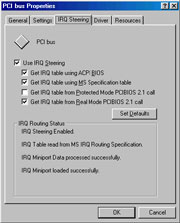
Look on the bottom half of "IRQ Steering. If you do not see the above information or something similar, then IRQ steering is disabled and you will need contact your computer manufacturer to walk you through enabling IRQ steering. Back to Top
|