 Go to
Go toDrivers Page
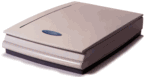 | Plug-N-Scan600 III EP Plug-N-Scan 600 III EP, Plug-N-Scan 600 III EP Plus, |
TWAIN Drivers | |
| 6003EP22.EXE | 2,171,712 | 7/16/97 15:02PM | Version 2.2 |
| For 600 III EP and 600 III EP PlusScanners: Combination Windows 3.1 / Windows 95 driver. Supports TWAIN 16 and TWAIN32 bit applications. Eliminates Line Art scanning problems. | |||
600 III EP and 600 IIIEP Plus Driver 2.2 Installation Instructions If your scanner is a 30-bit 600 III EP Plus, it shipped with driverversion 1.6, which places a program called watchdog.exe in the startupgroup. If your scanner is a 24-bit 600 III EP, the driver that came withit will not have the watchdog.exe program in the startup group as explainedbelow. Driver 2.2, will work with both scanners. It places watchdog.exe inthe startup group. Retain these instructions in the event that you obtainanother driver update in the future as you will need to remove driver version2.2�s watchdog.exe from the startup group before you will be able to installfuture driver releases. Re-installing or Updating Drivers Windows 95 Users C:\WINDOWS\TWAIN\A4S2\SPICALL.DLL is in use and cannot be installed.Please exit all applications and retry. Press ignore to not install thefile and abort to cancel the installation. Here is how to remove watchdog.exe from the Startup Group in Windows95. 1. Right click the �Start� button and choose open from menu that popsup. 2. Double click the Programs Folder icon. 3. Double click the Startup Folder icon. 4. Highlight Watchdog and press the DEL key on your keyboard to deletewatchdog.exe. 5. Reboot your computer. 6. You should now be able to install the version 2.2 driver update asexplained below. Windows 3.x Users If rebooting does not disable watchdog.exe, use the File Manager orMS-DOS commands to delete the following file: C:\WINDOWS\TWAIN\A4S2\WATCHDOG.EXE You should now be able to install the version 2.2 driver update as explainedbelow. Driver 2.2 Installation inWindows 95 and Windows 3.1x To install driver version 2.2, insert the disk in your floppy drive.Windows 95 users click �Start� then �Run� and type in A:\run then click�OK.� Windows 3.1x users click �File� choose �Run� and type in A:\run thenclick �OK.� Follow the onscreen prompts to complete. If the above steps don�t solve your problem, you should contact TechnicalSupport at (714) 247-1300. |