-
Before installing the latest version of driver software, please uninstall any previous version of software components if there's any.
-
Disconnect your product's USB cable from the computer.
-
Download the following files and save all files to the same directory.
**When downloading, please refer to the actual file name even though
there would be different file names between different operating systems.
(a) Scanner:
You have to download the �Logo Driver� , �TWAIN Driver and Panel� and
�Generic Scanning Module� file contents.
( XPDriver.exe, Web.exe ~ Web.w0x. and UP_LIB.exe ~ UP_LIB.w0x.)
(b) Camera:
You have to download both of the �Logo Driver� and �TWAIN Driver� file
contents.
( XPDriver.exe, Web.exe ~ Web.w0x.)
-
How to install it?
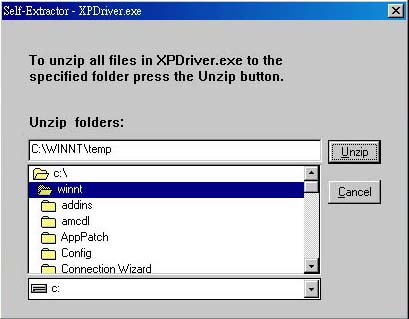
Execute the XPDriver.exe program then Figure 1 will appear and unzip the program in the temp folder. (you can also choose the driver's location by yourself)
Figure 1
 -
Connect the product to the computer.
After the �Found New Hardware Wizard� dialogue box in Figure 2 appears , please select �Advanced� and click �Next� to continue with the hardware installation procedure. Figure 2. 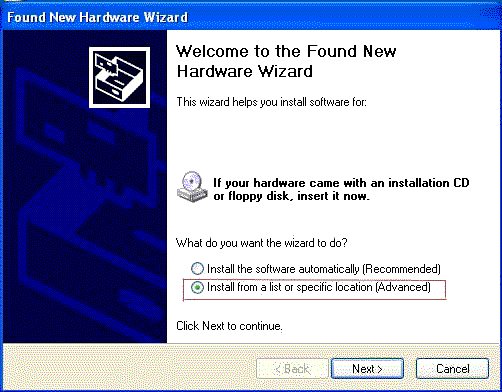
-
Then the dialogue box in Figure 3. will appear, please press the �Browse�button to select (refer to Figure 1.) the temp folder (you can also choose the driver's location by yourself) as the driver's location. Afterward, follow the on-screen instructions to continue. Figure 3. same the folder of Figure 1
.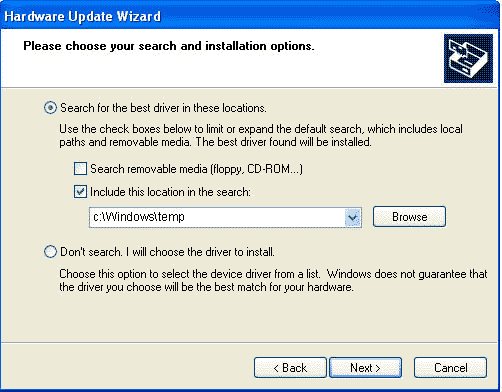 -
With the product connected to the PC,
(a) Scanner:Click and execute the Web.exe and UP_LIB.exe programs.
(b) Camera: Click and execute the Web.exe program.
-
Restart your computer, once the driver installation is complete. |