Picture Publisher Tutorial Selecting The Twain Source Acquiring The Scanner Setting Monitor Gamma
Selecting The Twain DataSource (Driver) 1. Start Picture Publisher. 2. Open the File Menu and place your mouse over the Setup command. Fromthe flyout Submenu, choose Scanner. 3. The Setup Scanner dialog box shows which Twain Data Source is currentlyselected. To change it, click the Select Source button. From the Sourcedialog box, highlight Mustek F/B Scanner (EPP-II) which is the Twain DataSource for the 600 III EP. Once it is highlighted, click select toreturn to the previous screen then click OK. Acquiring The Scanner 1. Start Picture Publisher. 2. Open the File Menu and click on the Acquire command. 3. The Twain driver should appear. 4. Set your Scan Mode and Resolution, then click Prescan. 5. Set your Crop Frame, then click Scan. 6. When scanning is complete, click the Close button to return to PicturePublisher. Setting Monitor Gamma 1. After scanning a picture, you may need to adjust the Monitor GammaSetting (This can only be done when an image is open). 2. Open the File Menu and place your mouse over the Setup command. Fromthe flyout Submenu, choose Monitor. 3. On the Monitor Gamma Tab shown below, uncheck Disable Monitor Gamma. 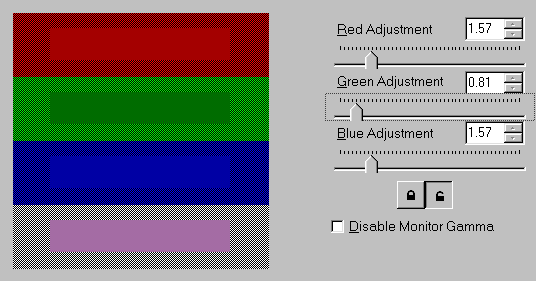
4. Slide the Gamma Setting bars for each color until the center of eachcolor band matches the outside portion as closely as possible. The Redand Blue bands shown above match but the green band still needs to be adjusted.Once all three color bands are correct, the center of the grey band shouldmatch fairly close also. In the picture above, the grey band appears pinkbecause the green setting needs adjustment. 5. Once the settings are right, click OK. 6. The Monitor Gamma will now be adjusted and your scanned image willappear lighter or darker accordingly. |