 | Document # 7024 |
        |
InstallingScanner Solutions CD Version 1.2 In Windows 95 | ||||||||||||||||||||||||
| 1. Insert the Scanner Solutions CD into your CD-ROM drive. 2. Click the Windows 95 Start button then click Run. 3. Type D:Setup95 then click OK. (This assumes your CD-ROM isthe D: drive. If it is another letter, replace the D shown here withthe proper drive letter.) 4. When the Welcome screen appears, click the Next button to begin installation. 5. The next screen allows you to control what folder on your hard drivethe software will be installed in. It is best to accept the default folderC:MSCAN so that if you ever call for Technical Support, we will know wherethe software is. Click the Next button to continue. 6. If this is a re-installation, you will be warned that C:MSCAN alreadyexists and asked if you want to install there anyway. Click the Yes button. 7. Scanner Solutions version 1.1 includes drivers for all of Mustek’scurrent products. The next screen allows you to select the driver for yourscanner. Refer to the list below for help choosing the correct model number.If you choose the wrong one, you may not be able to complete installationor your scanner may not work correctly. NOTE: The first item on the list will install an online Scanner User’sManual when checked.
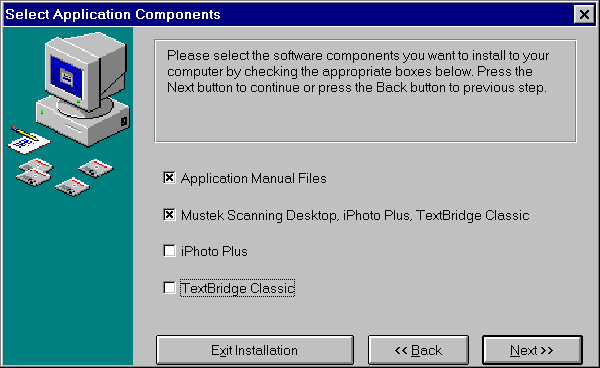
8. After you have chosen the correct model scanner, click the Next button. 9. The next screen allows you to choose which scanning programs to install.
a. Putting a check mark next to Application Manual Files will installmanuals for iPhoto Plus and Wordlinx if they are also selected. b. Putting a check mark next to Mustek Scanning Desktop (Win 95 only),iPhoto Plus, TextBridge Classic will install all of the software on theScanner Solutions CD. (You can’t install the Scanning Desktop by itselfbecause it uses both iPhoto Plus and TextBridge Classic when scanning) c. Putting a check mark next to iPhoto Plus will install the iPhotoPlus, an image editing and scanning program used for scanning photographsand graphics. d. Putting a check mark next to TextBridge Classic, an OCR applicationthat allow you to scan printed text documents into word processing applicationsfor editing. 10. Clicking the Next button will display a list of the components you’vechosen to install. Click the Start Install button to continue. 11. Follow the onscreen prompts to complete installation. Reboot yourcomputer after the install program is complete. |
| Mustek and the Mustek logo are trademarks and registered trademarksof Mustek, Incorporated. Any use without the express written permissionof Mustek is forbidden. Other company and product names may be trademarksor registered trademarks. |