Configuring HP Inkjet Printers to work with Plug-N-Scan ScannersDescription: |
| | Scanning works correctly, but useris unable to print from any program when the printer is attached throughthe scanners pass-through parallel-port. |
Solutions: |
| | Option 1: Use Bi-Directional A-B Switch Box |
| | | Customers who wish to purchase manualA-B switch boxes to switch back and forth between scanner and printer shouldbe sure to purchase bi-directional Switch boxes. Purchasing a low-costunit which doesn’t support bi-directional switching will not allow theprinter or scanner to work correctly. |
| | Option 2: Only Plug the Scanner in when Scanning |
| | | Customers who are not going to bescanning often also can switch the cable by hand to select either the Mustekscanner or Hewlett-Packard Inkjet Printer. |
| | Option 3: Disable Bi-Directional Communications in the HP DeskJetConfiguration Utility |
| | | The best solution for using an HPDeskJet Printer with a Mustek Plug-and-Scan Scanner is to disable bi-directionalcommunications in the HP Deskjet Configuration Utility. The printer willno longer send messages such as "No Color Cartridge Installed"or "Out of Color Ink". However, these are easy to determine bylooking at the printout. Note: turning off bi-directional communicationsdoes not affect print speed or print quality. Steps to Disable Bi-Directional Communcations |
| | | 1 | Select START and choose RUN |
| | | 2 | Type the appropriate filename: HPVCNFIG (DeskJet 500, 500C, 510, 520, 540, 550C, & 560C)
HPFCFG02 (DeskJet 600, 600C, & 660C printer)
HPFCFG03 (DeskJet 660Cse printer)
HPFCFG04 (DeskJet 680C, 682C, 820C, & 820CSE)
HPFCFG05 or HPFCFG07 (DeskJet 690C & 693C)
HPRCFG01 or HPRCFG02 (DeskJet 850C/855C printers)
HPRCFG03 (DeskJet 870C) NOTE – If you do not see your printer model listed, you may need todo a file search for HP*.EXE from the FIND menu. You may also want to consultyour printer manual for information on the printer configuration utility.If all else fails, contact HP technical support. |
| | | 3 | Choose OK |
| | | 4 | When the HP DeskJet Configuration screen popsup, choose CONTINUE |
| | | | 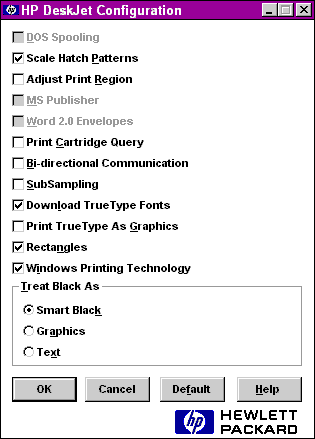 |
| | | 5 | At the next window, uncheck the boxes thatsay PRINT CARTRIDGE QUERY & BIDIRECTIONAL COMMUNICATION |
| | | 6 | Click OK |
| | | 7 | Restart Windows |
| | | After completing the steps outlinedabove, Your printer will function correctly. Please note that these instructionsare for Windows 95. The steps outlined above may be slightly differentunder Windows 3.1. |
| Mustek and the Mustek logo are trademarks and registered trademarksof Mustek, Incorporated. Any use without the express written permissionof Mustek is forbidden. Hewlett-Packard, HP, the HP Logo, and DeskJet aretrademarks and registered trademarks of Hewlett-Packard Corporation. |
| |