| 
All Mustek scanners come with OCR software which will work with common Word Processors. The diagram below shows how TWAIN modules work in conjunction with OCR software to scan text documents into your Word Processor: 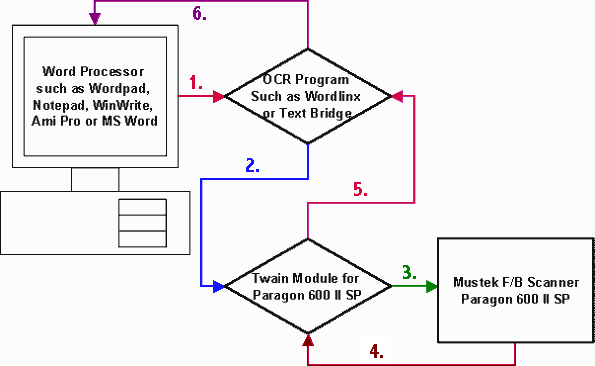
1. A Word Processing application calls a TWAIN Compliant OCR application such as TextBridge or Wordlinx. 2. Settings are adjusted if necessary in the OCR application which then calls the TWAIN Module. 3. The TWAIN module takes control of the scanner and allows the user to set the Scan Mode to Line Art and the Resolution to 300 DPI. *See Note Below 4. When the Scan button is clicked, the scanner begins transmitting the image data back to the TWAIN Module. 5. The TWAIN module transfers the image data back to the OCR program that TWAIN was called from. The OCR program uses one or more of the methods described above to convert the bitmap image of your text into letters. 6. TWAIN sends the recognized letters back to your word processor. If the OCR program could not recognize a letter, it places a ~ symbol where the unreadable letter was. Sometimes OCR programs incorrectly recognize letters. This is almost always due to poor quality original documents. **See Note Below *Note: You can use 400 DPI if your text is smaller than 10 point. If your text is 10 point or larger, use 300 DPI because OCR software is optimized for 300 DPI scans. Believe it or not, OCR will usually be more accurate scanning at 300 DPI than at 400 DPI unless your text is very small. **Note: Documents printed by high quality printing processes are most suitable for OCR. This includes laser printers, printing presses and books. Pages printed on inkjet printers as well as newspaper articles will give good results, but there will be more mistakes than with laser printed originals. Items printed on dot matrix printers, copy machines and FAX machines do not produce good results with OCR software. If you are not getting good results with your OCR software, try scanning your document with iPhoto Plus or Picture Publisher. You should set the Scan Mode to Line Art and the Resolution to 300 DPI. After scanning, zoom in on some of your text and see if it looks recognizable to you. If it does not look good and smooth like the letter "a" above, you are either scanning a poor quality document or you need to reset the Brightness and Contrast settings in your TWAIN Module prior to scanning.
|